NFC vs QR code: how an emergency tag works and why it has both

In short
- You read a QR code with the camera; you read an NFC tag by holding your phone against it.
- A QR code needs light and has to be visible; NFC works in the dark, but only within a few centimetres.
- For a link they do the same thing: both open a web page.
- With both on one tag, almost any phone can read it.
You scan a QR code on a menu or a parking meter. At the till you hold your card or phone against the terminal and pay contactless, which is NFC. Both pass information to your phone in a second. So what is the difference between NFC and a QR code, and which works better when?
The difference is in how your phone reads the information. A QR code is a picture that your camera scans from a short distance. NFC is a tiny chip that your phone reads by radio when you hold it very close. If the tag contains a link, both do exactly the same thing: they open a web page. Below they are side by side, followed by how to scan each one and what to do when it doesn't work.
What is a QR code?
QR stands for Quick Response. The code was developed by the Japanese company Denso Wave, which announced it in 1994. It is a square pattern of black and white modules that holds text, usually a web address.
Your phone reads the code with its camera. On an iPhone, Apple says you open the Camera app, hold the phone so the code appears and tap the link. On Android you use the camera app or Google Lens.
QR codes have built-in error correction: they contain extra data, so a code can often still be read when part of it is dirty or damaged. How much can be missing depends on the level chosen when the code is made.
What is NFC?
NFC stands for Near Field Communication. A tag contains a tiny chip with an antenna. According to the NFC Forum, NFC uses a base frequency of 13.56 MHz, and one side can transmit power over the connection. That is why a tag needs no battery: the phone that reads it supplies the energy.
It only works at very close range. The Android developer documentation says it typically requires a distance of 4 cm or less. You already use NFC for contactless payments and, in many cities, for tapping in on public transport.
NFC vs QR code: what's the difference?
| QR code | NFC | |
|---|---|---|
| How do you read it? | point the camera at the code | hold the phone against the tag |
| Distance | close up to a little way off, as long as the camera sees it sharply | a few centimetres |
| Needs light? | yes | no |
| Must be visible? | yes, the whole code | no, the chip can be hidden inside |
| What does the phone need? | a camera | an NFC reader, which sometimes has to be switched on |
| Sensitive to | dirt, scratches, glare, low light | cases with magnets or metal, holding the wrong part of the phone |
| Battery in the code or tag? | no | no |
| Can it be copied? | yes, a photo of the code works too | only by reading the tag itself |
That last row is worth knowing. Someone who photographs a QR code can scan the photo later and reach the same page. With NFC you need the tag in your hand. Either way, what someone sees depends on what is on the page behind the link.
How do you scan an NFC tag with an iPhone?
According to Apple's developer documentation, iPhone XS and later read NFC tags in the background, without an app.
- Make sure the screen is on.
- Hold the top of the iPhone against the tag. Apple gives the same advice for Apple Pay: hold the top of your iPhone near the reader.
- Hold still for a second or two until a notification appears.
- Tap the notification. If the iPhone is locked, it asks you to unlock it first. The link then opens in Safari.
Apple lists moments when background reading isn't available even with the screen on: the iPhone has never been unlocked since it started up, the camera is in use, Apple Pay Wallet is in use or aeroplane mode is on. Older iPhones don't read tags on their own; use the QR code instead.
How do you scan an NFC tag with an Android phone?
- Switch NFC on. On a Samsung Galaxy, go to Settings > Connections > NFC and contactless payments, as Samsung UK explains. On other brands, type "NFC" into the search bar in Settings.
- Unlock your phone. Google's documentation says Android devices usually look for tags when the screen is unlocked.
- Hold the back of the phone against the tag. The antenna's exact position varies by model, so move the phone slowly over the tag.
- Wait for the page or a notification. The link opens in your browser.
Scanning doesn't work: what now?
- NFC is off. On Android this is the most common cause.
- The case is in the way. Samsung warns that cases containing magnets, cards or metal can interfere. Take the case off and try again.
- The camera or a payment app is open. Close it, especially on an iPhone.
- You're using the wrong part of the phone. iPhone: the top. Android: the back.
- You're moving too fast. Hold the phone still on the tag for a second or two.
- The page won't load. The tag was read, but there's no internet. Find a signal or Wi-Fi.
- Nothing helps. Scan the QR code with the camera instead.
When does NFC work better, and when a QR code?
- It's dark, for example at the roadside in the evening. NFC works as normal; for the QR code you need the torch.
- The tag is in an awkward place, such as on the side of a helmet. NFC is often quicker because you don't have to aim.
- The helper has an older phone or doesn't know about NFC. The QR code is the way out, because everyone knows the camera.
- NFC is switched off on the helper's Android phone. Turning it on takes time; the QR code works straight away.
There is no winner. They complement each other.
Why an emergency tag should have NFC and a QR code
With emergency information, you never know who will help you or what phone they have. A tag with only NFC leaves the helper with an older phone stuck. A tag with only a QR code is awkward in the dark or in a hard-to-reach spot. With both, nearly every helper has a method that works.
That is why every ICESCAN has an NFC chip and a QR code leading to the same emergency page, plus the words HELP and SCAN ME so people recognise what to do. The key ring goes wherever your keys go, and the stickers fit on a helmet, phone case or rucksack.
Whoever scans one sees, in their browser, the details the owner has made public and buttons to call or email their contacts. If the owner has protected sensitive details, the helper sees "Ask for the password to view more data". The fixed text appears in Dutch, English or Spanish, depending on the language of the helper's phone. In an emergency, call 112 first, then the contact.
Because a QR code can be photographed, only make public what a helper needs immediately and protect the rest with a password. Deciding what goes where is covered in what emergency information to include.
Frequently asked questions
Can a QR code expire?
The code itself can't. A QR code is an image containing text, usually a web address, and that image doesn't change. What can disappear is the page behind the address, so it helps to know who runs that page. ICESCAN keeps your details available for as long as icescan.nl exists, without a subscription.
Can you read a QR code or NFC tag without internet?
Your phone can read the code or tag without internet. But if it contains a link, you need internet to open the page. An emergency page only loads with mobile data or Wi-Fi. An ICESCAN holds no data itself, only a link with a unique code.
Can someone read my NFC tag from a distance?
Not from a normal distance. NFC only works within a few centimetres, so someone would have to hold their phone right next to the tag. And a tag that only holds a link gives away nothing but that link. What sits behind it is up to you, and on ICESCAN you can protect sensitive sections with a password.
Goes with this article
All ICESCANs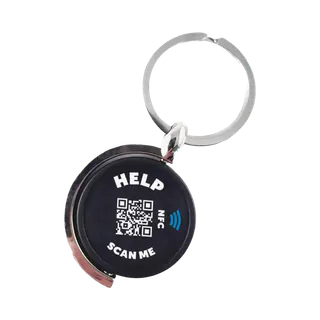
Key ring
For your keys
Now €29.95
Regular price €34.95Temporarily out of stock
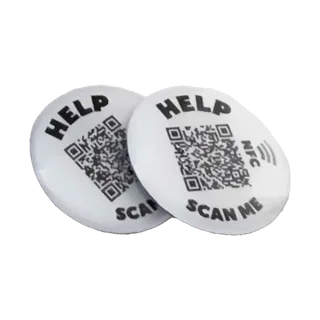
Stickers, pack of 2
For a helmet, bike or rucksack
Now €29.95
Regular price €34.95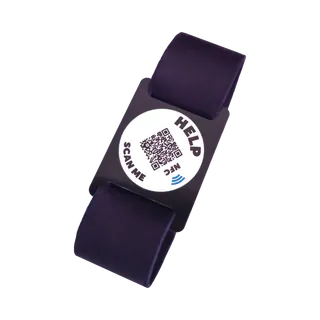
Bracelet, 19 cm
Adults · black
Now €29.95
Regular price €34.95


